iPhone 6 etiketine sahip kayıtlar gösteriliyor. Tüm kayıtları göster

17 Eylül 2014 Çarşamba

Apple Releases iOS 8 with Major Accessibility Improvements


Today, Apple released iOS 8 the latest software update for iPhone, iPad, and iPod Touch. The new software, which is available for free, includes many new features and enhancements, including new accessibility features and tools that will allow developers to make the next generation of apps. Apple has not stood still in terms accessibility and as a result, iOS 8 is truly the most accessible and inclusive iOS version to date.

Some of the most exciting new accessibility features are included in iOS are ready to use right after updating. These features are developed by Apple, and most are found under Settings > General > Accessibility.

Speak Screen is one of the new accessibility features that allows users to quickly and easily have content on the screen read with text-to-speech with a simple two finger swipe down gesture. Unlike older versions of iOS which required users to highlight sections that they wished to be spoken, Speak Screen does not require any highlighting. Users can even ask Siri to “speak the screen” to start text-to-speech.

Apple’s highly acclaimed screen reader, VoiceOver, also received some substantial updates. Now, VoiceOver users can enter text using a system-wide virtual six-dot Braille keyboard. Zoom is also vastly improved with windowed magnification and filters. Guided Access and AssistiveTouch have seen smaller improvements.

In addition, all accessibility features that use speech will now be able to use the Alex text-to-speech voice that many Mac users enjoy. All of these features are included with the iOS 8 update. Stay tuned for in depth information about the features discussed above in the coming days and weeks.

With iOS 8, Apple has given developers tools to make the next generation of great apps. Hopefully, assistive app makers will be able to take advantage of these new features to help people with various needs. Developers can now make system wide keyboard apps. iOS keyboards will now be able to enter text into any app if the developer updates the app for iOS 8. For example, Fleksy and SwiftKey are expect to receive an update shortly to enable text entry into any app. Developers can also add the ability to unlock their app using Touch IDfinger print recognition for devices with Touch ID. Lastly, developers can create extensions to allow their app to perform functions within other apps. For example, a translation extension could be used within Safari to eliminate the need to switch apps.

These features open up a whole new world to app developers and it will be exciting to use some of the new apps that take advantage of these new developer features. While some apps have already been updated to take advantage of the new developer features in iOS, many have not been. Check back to read about some apps that are taking advantage of these new developer features in ways that can help people with disabilities.

iOS 8 is a free update that you can download now. Stay tuned to the Assistive Technology Blog to learn more about the new included accessibility features and about apps that take advantage of the new developer features.

6 Eylül 2014 Cumartesi

What a Larger Screen iPhone Means for Accessibility


The general consensus is that Apple will introduce new iPhones with larger screens in a few days. With many people with disabilities using Apple's flagship device for their accessibility needs a change can have a large impact on users. From a software prospective iOS 8 will offer many accessibility improvements, but hardware is also an important aspect of accessibility. The larger screen will certainly benefit some users with special needs, but may also cause problems for others.

Users with low vision may benefit the most from the larger viewing area. On current iPhones, with large text enabled, only a small amount of text is able to fit on screen. A larger screen will allow more text to fit on screen requiring less scrolling for users who prefer or require large text. The large screen will also give VoiceOver users more space to use three or four finger gestures.


On the other hand a larger screen iPhone may pose a challenge. Users with physical challenges may have a difficult time reaching all the controls. Also users who prefer using their phone in one hand and users who can only use one hand to operate their phone may find it difficult access all areas of the screen. It is possible that Apple will come up with a software solution to these possible challenges, making one handed use a breeze. 

When Apple introduced the iPhone 5 it claimed that the larger screen was a perfect size for one handed, use so it will be interesting to see how the next iPhone is marketed.

People who use Apple devices as assistive devices should be excited about the company's upcoming announcement. Regardless of any hardware changes Apple's iOS 8 includes unmatched accessibility features for people with a variety of needs. The potentially larger screen size will likely benefit most users. The benefits and trade-offs of larger screen phones has been explored with Android phones for years, and hopefully Apple has been able to iron out any lasting challenges. Aside from the form factor, Apple may introduce new software or hardware features that impact people with disabilities at their event. Stay tuned for information about how Apple's announcements impact accessibility.

4 Haziran 2013 Salı

Creating an iTunes Store, App Store, iBookstore, and Mac App Store account without a credit card


If you already have an Apple ID:


Shop Amazon Electronics - Over 40 Off Select iPhone Cases


When you use Apple services, such as the Apple Online Store or registering your product online, you create an Apple ID. You can use the same Apple ID for iTunes, the Mac App Store, iCloud, iMessage, FaceTime, Game Center, and more.
It is recommended to use only one Apple ID.
If you have registered your product or used any Apple services, you should follow this article to use an existing Apple ID with the iTunes Store or Mac App Store.
If you have not created an Apple ID yet, this article will assist you in doing so on your computer in iTunes or on an iOS device.
Creating an account on a computer
  1. Click iTunes Store (on the left side of the iTunes window), and pick your country by clicking the appropriate country flag located in the bottom-right corner of the main iTunes Store page.
  2. Navigate to the App Store by clicking on App Store from the top navigation bar.


  3. Important: Before proceeding to the next step, you must download and install a free application. To find a free application, navigate to the Top Charts column on the right side of the App Store window. Scroll down until you see the list of Free Apps. Select any application by clicking on it. Then, click Free App underneath the application icon.
    click free app
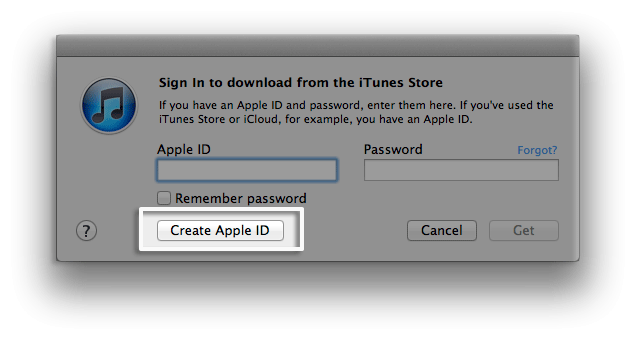
  4. In the pop-up window, click Create Apple ID.
    create new account window
  5. You are directed to the "Welcome to the iTunes Store" screen. Click Continue.

    welcome to the iTunes Store screen
     
  6. You'll need to read and agree to the iTunes Store Terms & Conditions. Make sure you select the checkbox next to "I have read and agree to these terms and conditions."
  7. Click Continue.
  8. Enter your email address, create your password, continue to create and answer your security questions, and then enter your birthday.
  9. You can also enter an optional rescue email address. If you frequently change email addresses, this is recommended.
  10. Once you are satisfied with the information entered, click Continue.
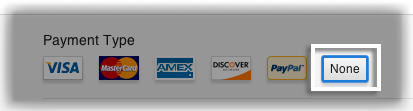
  11. Select None as the payment type.
    payment type
  12. Continue to fill out the required name and address fields.
  13. You'll then see a "Verify your Account" screen. Click Done, and then check your email for a verification email from iTunes Store.
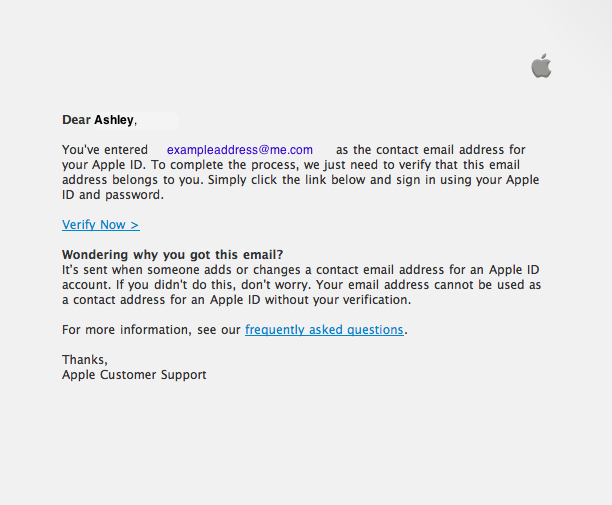
  14. Open the email, and click the link enclosed in the email to activate your account.
    Email text: "You've entered exampleaddress@me.com as the contact email address for your Apple ID... click the link below and sign in using your Apple ID and password."
  15. Once you click on the link, the Apple ID website should ask you to sign in with your account name and password.
  16. After signing in, you should see that your email address is associated with your Apple ID. A button labeled "Return to the Store" should appear.
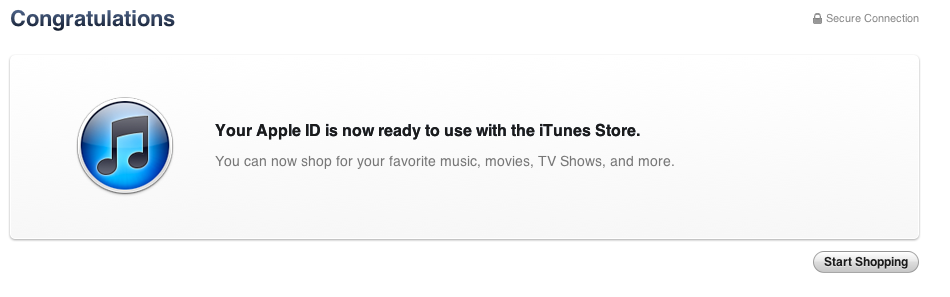
  17. Once you sign in, you'll then see the below "Congratulations" screen. Click Start Shopping to be taken to the App Store home page.
    Congratulations screen for account creation
Creating an account on iPhone, iPad, and iPod touch
  1. Open the App Store on your device. 
  2. Find a free application on the App Store.
  3. Important: Before proceeding to the next step, you must download and install the free application by tappingFree followed by tapping Install App.

  4. tap free

    tap install app
  5. Tap Create New Apple ID.

    create new Apple ID
     
  6. Choose your country, and then tap Done.

  7. choose your country screen
  8. You'll need to read and agree to the iTunes Store Terms & Conditions. Tap Agree located at the bottom of the page to continue.
  9. Enter your email address, security questions, birthday, and create your password.
  10. You also can enter an optional rescue email address. If you frequently change email addresses, it is recommended that you add a rescue email address. Learn more about the rescue email address.
  11. Once you are satisfied with the information entered, tap Next.
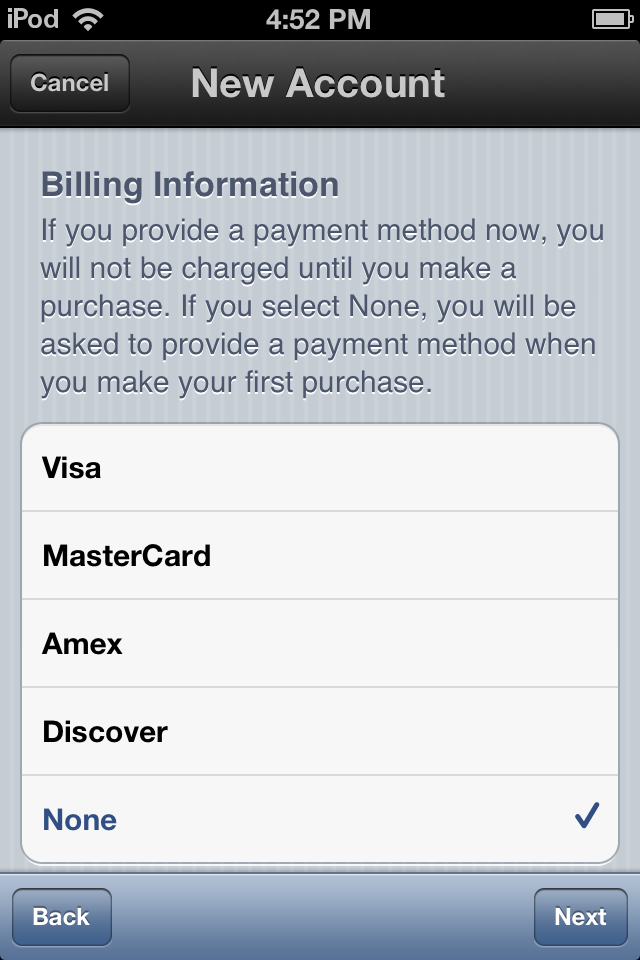
  12. Select None as your payment option.

  13. payment options screen
  14. Continue to fill out the required email, address, and phone number fields. Tap Next.
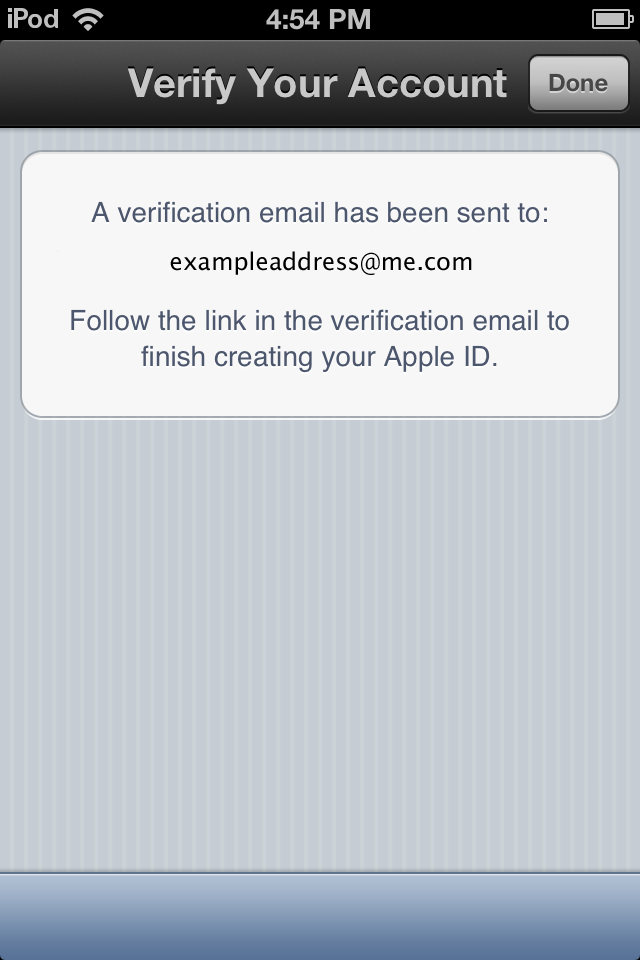
  15. You'll then see a screen that says "Verify your Account." Tap Done, and check your email for a verification email from iTunes Store.

  16. verify your account screen
  17. Open the email, and click the link enclosed in the email to activate your account. 
  18. Once you tap the link, the App Store should automatically open and prompt you to sign in with your account name and password.

    sign-in to verify screen
     
  19. Tap Sign In, and you will see a thank you screen.

    thank you verification screen
     
  20. You have set up your account successfully, and you can start enjoying iTunes, iBooks, and the App Store on your iPhone, iPad, and iPod touch.

    sign in to complete verification

Additional Information

For additional methods on creating an Apple ID for the iTunes Store, App Store, iBookstore, or Mac App Store, see this video tutorial.


  Shop Amazon Home - Up to 40 Off Cooling Products


29 Mayıs 2013 Çarşamba

iphone 6 Just as smart looking as the iPhone 5, but 20% slimmer.

Shop Amazon Electronics - Over 40 Off Select iPhone Cases Shop Amazon Home - Up to 40 Off Cooling Products

iPhone 6 concept shows thinner handset with touch-sensitive home button and 12MP camera


iPhone 6 concept (black) by Arthur Reis
iPhone renders are a dime a dozen, but for once we have been graced with a concept for Apple’s next flagship phone that seems very much a possibility.
Created by Arthur Reis, a budding designer who aspires to join the ranks of Jony Ive and Shin Nishibori someday, 3D renderings of the iPhone 6 imagine a handset that looks largely identical to iPhone 5 (think: anodised aluminium casing with chamfered edges), but an impressive 20 per cent slimmer at just 6.1mm thick.

The handset also features a 12-megapixel camera with an ‘iSight Pro’ sensor boasting an f/1.8 aperture and a ‘Magic TrackPad’ that replaces the physical home button with a touch-sensitive equivalent.
As far as we’re concerned, this is one of the best iPhone concepts we’ve seen, principally because it doesn’t go crazy on novel or unrealistic features as most concepts do.
Apple is always trying to make its handsets slimmer, so a more slender iPhone is within the realms of possibility. And with Samsung upping the ante with a 13-megapixel camera on the freshly launched Galaxy S4, we can certainly expect the iPhone 6 to match its competition in the imaging stakes.
The iPhone 6 is hotly tipped to land this summer, possibly sometime in July. Although there’s still a chance that Apple might stick to an autumn release cycle for new iPhone launches.
What do you think of Reis’s iPhone 6 concept? Let us know in the comments section below.


13 Nisan 2013 Cumartesi

Apple iOS 7: 5 must-have features iOS 7 needs more than a single killer feature to keep up with the Joneses.

ios homescreen
iOS 7 has hit the headlines in recent days, thanks to a sharp new concept video and gossip about the much-anticipated software being delayed.
Jony Ive and his team have apparently had to bring over OS X engineers to help them realise a bold new vision for Apple’s tired mobile operating system.
So, what changes does iOS need to give it back that missing edge? Here are our five must-haves.

1 Live app information

nokia lumia 720 long
Windows Phone nails this, as does Facebook’s new Home app launcher for Android.
Serving up live info from apps solves having to tap through to get the latest information, whether it’s the weather, new tweets or contact changes.
Obviously, iOS’s small icons present difficulties, but bringing up a small widget, as detailed in this week’s ace concept video by F Bianco, could solve that issue.
It’d certainly stop us having to open up countless apps all the time.

2 A beefed-up iMessage

iOS 5 iMessage official
iMessage, for all its promise of a unified messaging solution, has been something of a damp squib.
WhatsApp eclipses it and its average looks feel like part of a wider software malaise within Cupertino (see Siri and Maps).
Apple could use a BlackBerry Hub-style unified messaging platform, collating Facebook messages and updates, tweets, texts and emails.
It’s the future and surely Jony Ive knows it.

3 Improved homescreen layout

iphone large new
That iOS home screen looked so futuristic back in 2007. But a few tweaks and customisable wallpapers aside, little has changed with its design in that time.
A fresh approach is needed, one where we don’t just have endless screens of apps or folders.
There has to be a smarter way, with full-on launchers for groups of related apps and homescreens for different services.
Basically, it needs to take stock Android as its guide in this instance.

4 Fingerprint scanning

iphone fingerprint sensor
This may be focused solely on the iPhone 5S or iPhone 6, but fingerprint scanning feeds into the wider issue of iPhone security.
Its four-number code system is not exactly foolproof and scanning tech could put iOS 7 well ahead of the pack.
It’d also give Apple a much-needed innovation fillip, with the chance to crow about how much more secure its handset is than rival efforts.

5 Maps 2.0

Apple Maps devices
Obvious, yes, but the heavily criticised Maps still needs huge improvements. Locations need to be more detailed, POIs updated and usability addressed.
Six months on, this is still a debacle that defines iOS 6. Maps needs root and branch reform, with more people working to ensure its back end stays up to the minute.


Copyright @ 2013 Technology.